Logging in with an Existing Account
Learn how to log in with an existing Beam account on your smartphone and/or web version.
Step 1: Preparation & Compatibility
Ensure your device meets the requirements before you begin.
- Check your system:
- Android: Version 13 to 17
- iOS: Version 18.5 to 27
- For the most current list: view the system requirements on beam.belgium.be
- Download the official app:
Install Beam only via the official App Store (iOS) or Google Play Store (Android). - Have your details ready:
Have your professional email address (for login) at hand.
Have your recovery key at hand. If you haven't created it yet: Creating the recovery key in Beam.
Step 2: Logging in on your smartphone
-
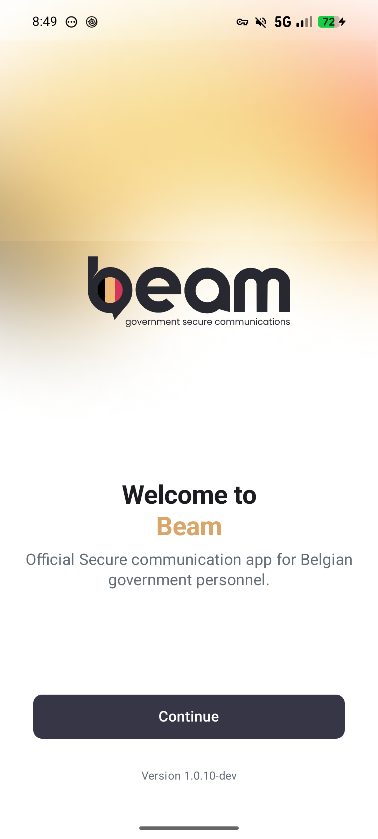
Open the Beam app on your device and choose Continue.
-
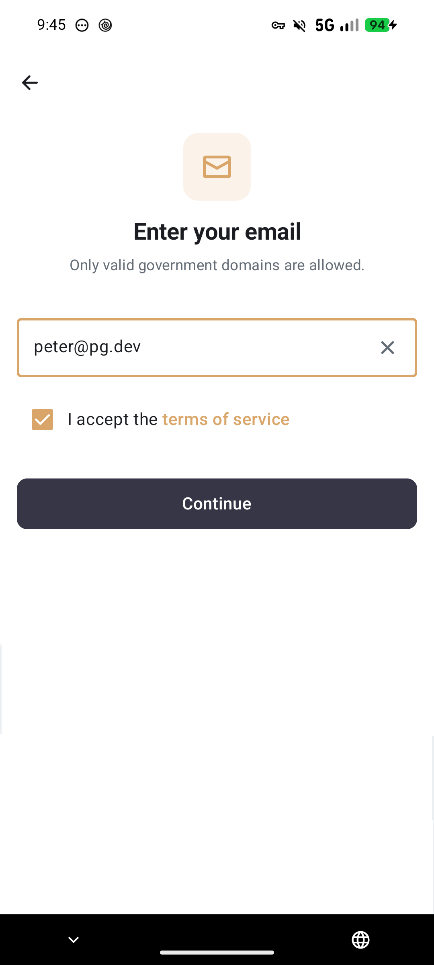
Enter your professional email address, accept the terms of use, and choose Continue.
-
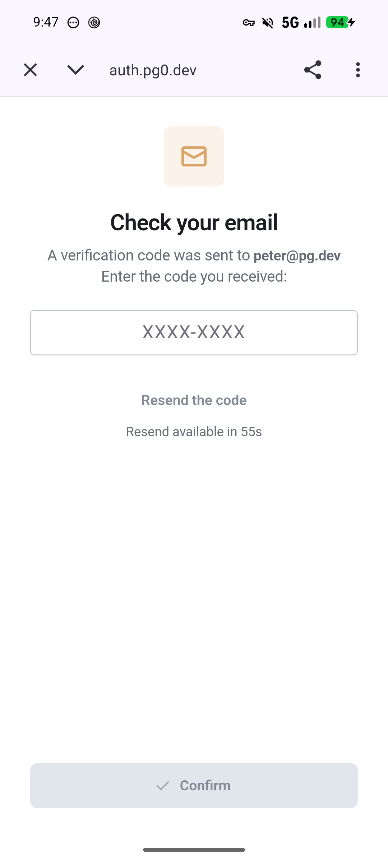
Enter the code that was just sent to your professional email address.
-
Enter the code sent to your phone number.
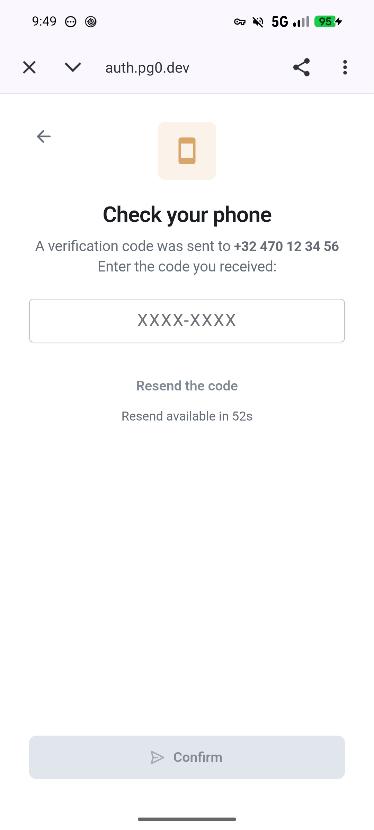
-
To log in to Beam, press Continue.
-
Confirm your identity:
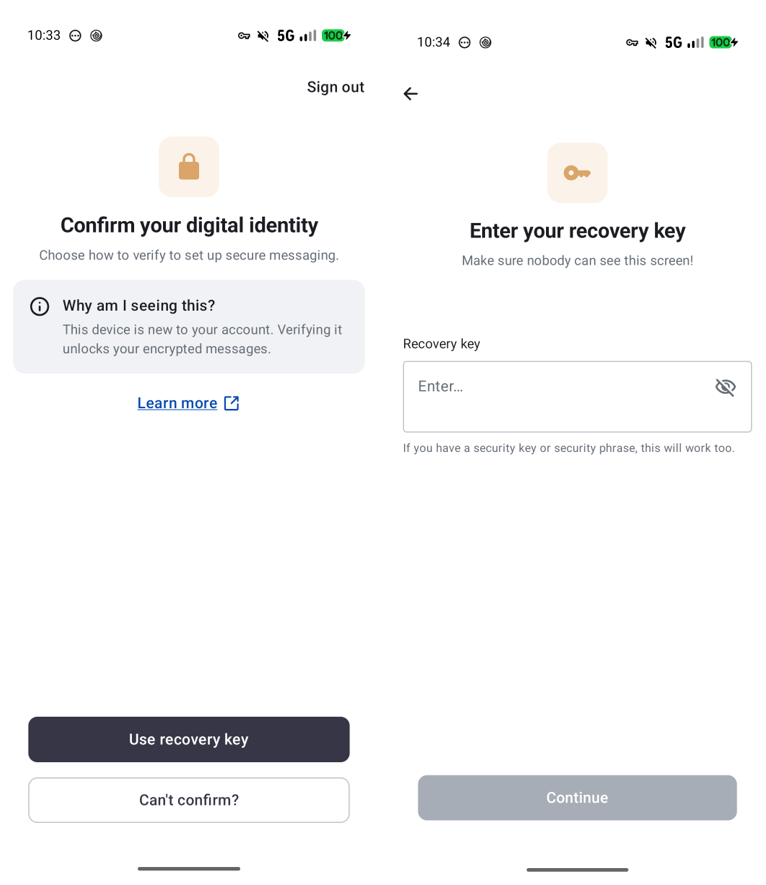
- Use another device: Use another device where you are already logged in to log in using emoticons (facial recognition).
- Use the recovery key: Enter your recovery key here and choose Continue.
- Confirmation impossible: This means you have not created a recovery key.
 In this case, you must reset your identity, and you will lose your entire message history. See Identity Reset.
-
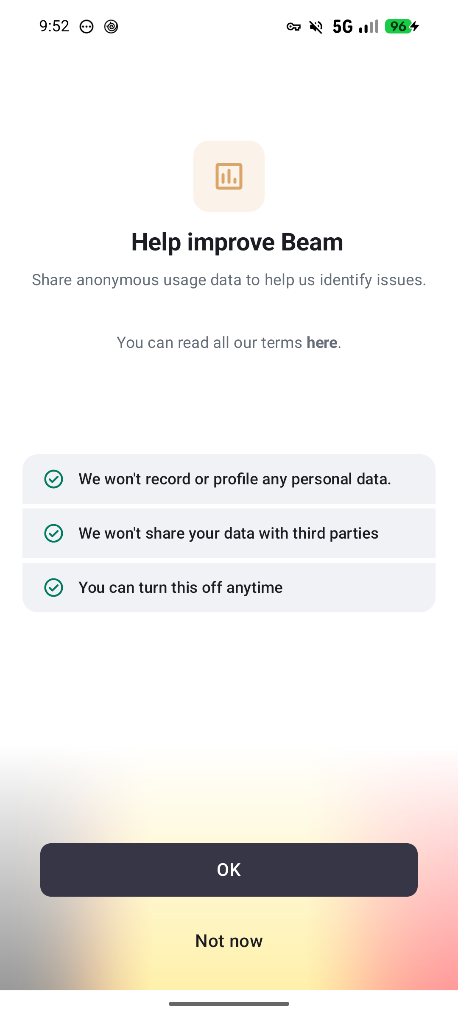
Help us improve Beam. It's up to you whether you want to accept or decline this option.
Using the web version?
Want to use Beam on a laptop?
- First log in to the app on your smartphone.
- Go to web.beam.belgium.be on your computer.
- Scan the QR code displayed on the screen via the app (Profile Icon > Link a device).
- Enter the number from your other device.
- Confirm on your smartphone that this is your device and that you want to log in to the web version.